
Ryvn tracks whether each resource was last changed by git sync or by the dashboard/API. If you edit a git-synced resource through the dashboard, drift protection stops the next git sync from overwriting it. This gives you time to export those changes back to git before syncing again.Documentation Index
Fetch the complete documentation index at: https://ryvn.ai/docs/llms.txt
Use this file to discover all available pages before exploring further.
How it works
Each git-synced resource has a source:GITSYNC or API.
When you edit a resource through the dashboard, Ryvn flips its source to API. The next git sync skips it. The resource stays in its dashboard-modified state until you either export the changes to a branch or remove protection.
Drift banner
When a resource is drift-protected, a yellow banner appears at the top of its page.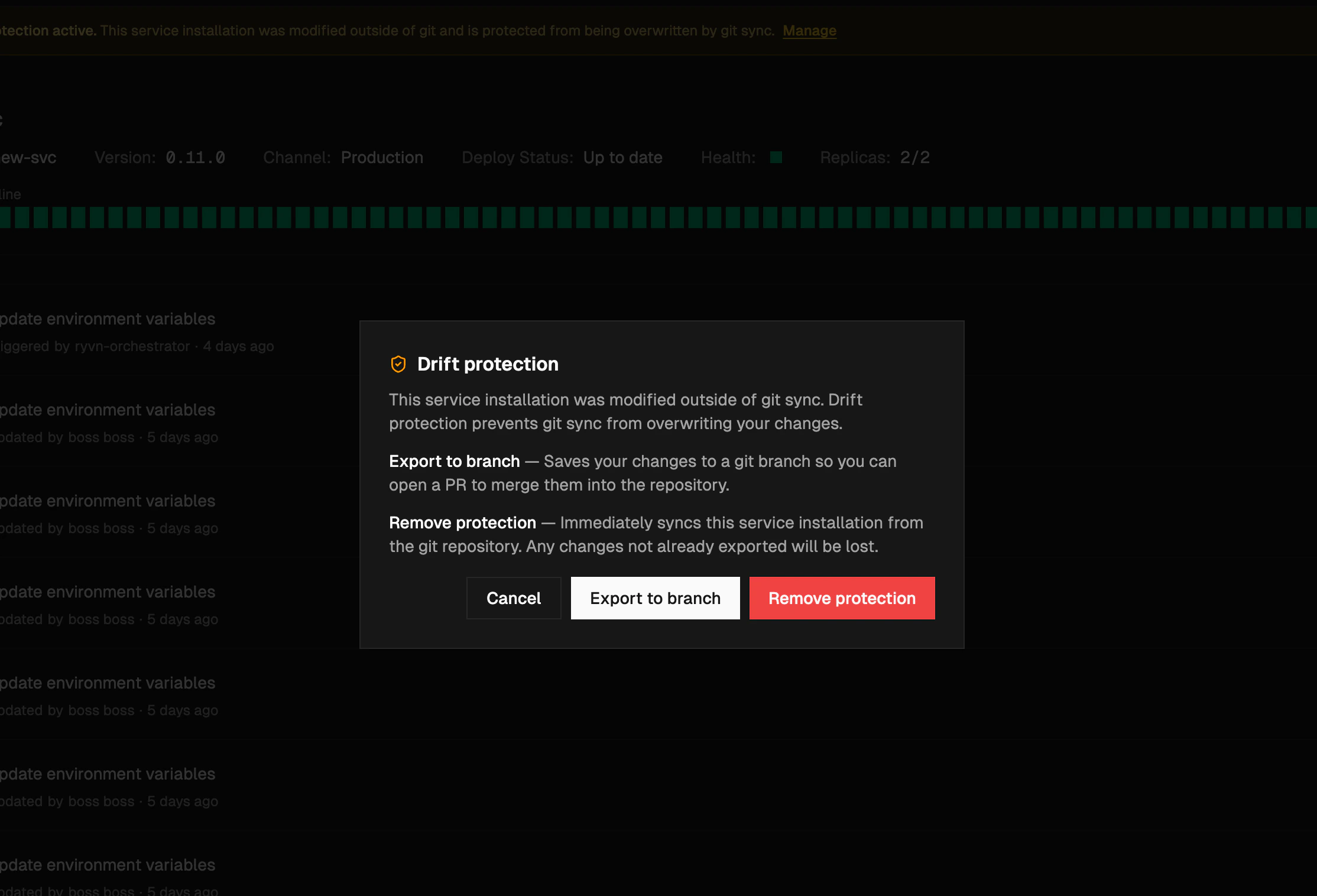
- Export to branch — pushes your dashboard changes to a git branch so you can open a PR
- Remove protection — deletes the drift record and re-syncs from git immediately, overwriting your changes
Exporting changes to git
When you export a drifted resource, Ryvn:- Reads the current resource state from the database
- Diffs it against the existing files in the repository
- Creates or updates a branch with the changes (reuses an existing export branch if one exists)
- Returns a link to create a pull request
GITSYNC and the resource syncs normally again.
Exporting does not remove drift protection. The resource stays protected until you explicitly remove protection or the exported changes sync back via git.
Removing Drift Protection
Removing protection does two things atomically:- Deletes the drift record for the resource
- Triggers a full git sync to re-apply git state
Enabling and disabling
Drift protection is on by default for new Git Sync configurations. You can toggle it in Git Sync settings. When disabled, git sync overwrites all resources on every run regardless of how they were last modified. No resources are skipped and no drift banners appear.Via the dashboard
Go to Settings > Git Sync and toggle Drift protection.Via API
Drift protection is a Git Sync-level setting, not per-resource.Supported resources
All resource types managed by git sync support drift tracking:| Resource | Drift tracked | Export supported |
|---|---|---|
| Service | Yes | Yes |
| Environment | Yes | Yes |
| Blueprint | Yes | No |
| Promotion Pipeline | Yes | Yes |
| Release Channel | Yes | Yes |
| Maintenance Window | Yes | Yes |
| Service Installation | Yes | Yes |
| Blueprint Installation | Yes | Yes |
Checking drift status via API
Sync results for drifted resources
Skipped resources show up in git sync task results with statusskipped:
COMPLETED_WITH_WARNINGS or PARTIAL_SUCCESS.