
Ryvn integrates with Infisical to sync secrets directly into your variable groups. This lets you manage secrets in Infisical and have them automatically available in your installations.Documentation Index
Fetch the complete documentation index at: https://ryvn.ai/docs/llms.txt
Use this file to discover all available pages before exploring further.
Prerequisites
- An Infisical account with a project containing secrets
- Organization admin access in Ryvn
Setting up the connection
Go to Machine Identities
In Infisical, navigate to Organization Settings > Access Control > Machine Identities.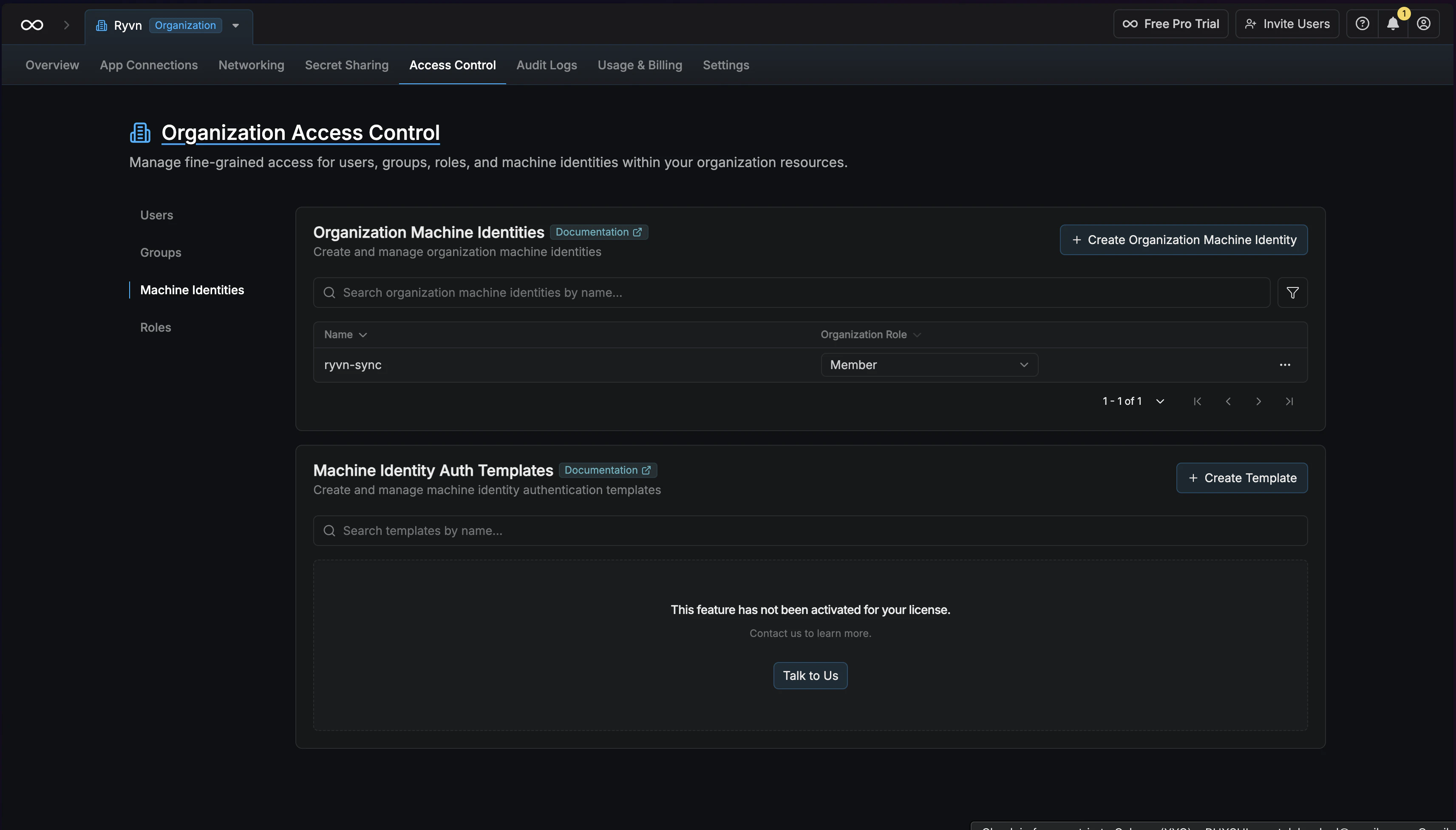
Create a machine identity
Click Create Organization Machine Identity. Give it a name (e.g. 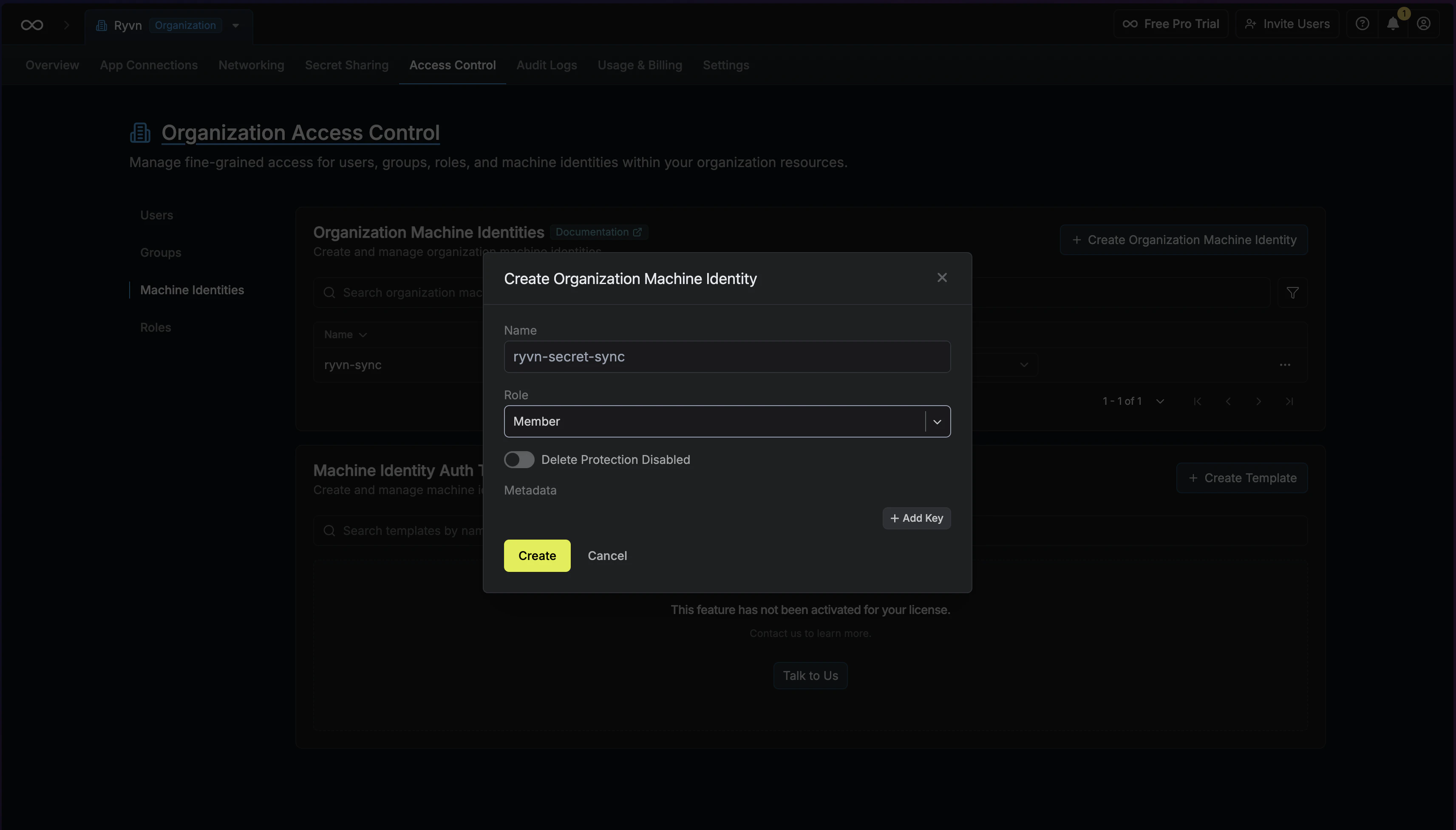
ryvn-secret-sync) and set the role to Member.Configure universal auth
On the machine identity page, Universal Auth is configured by default under Authentication.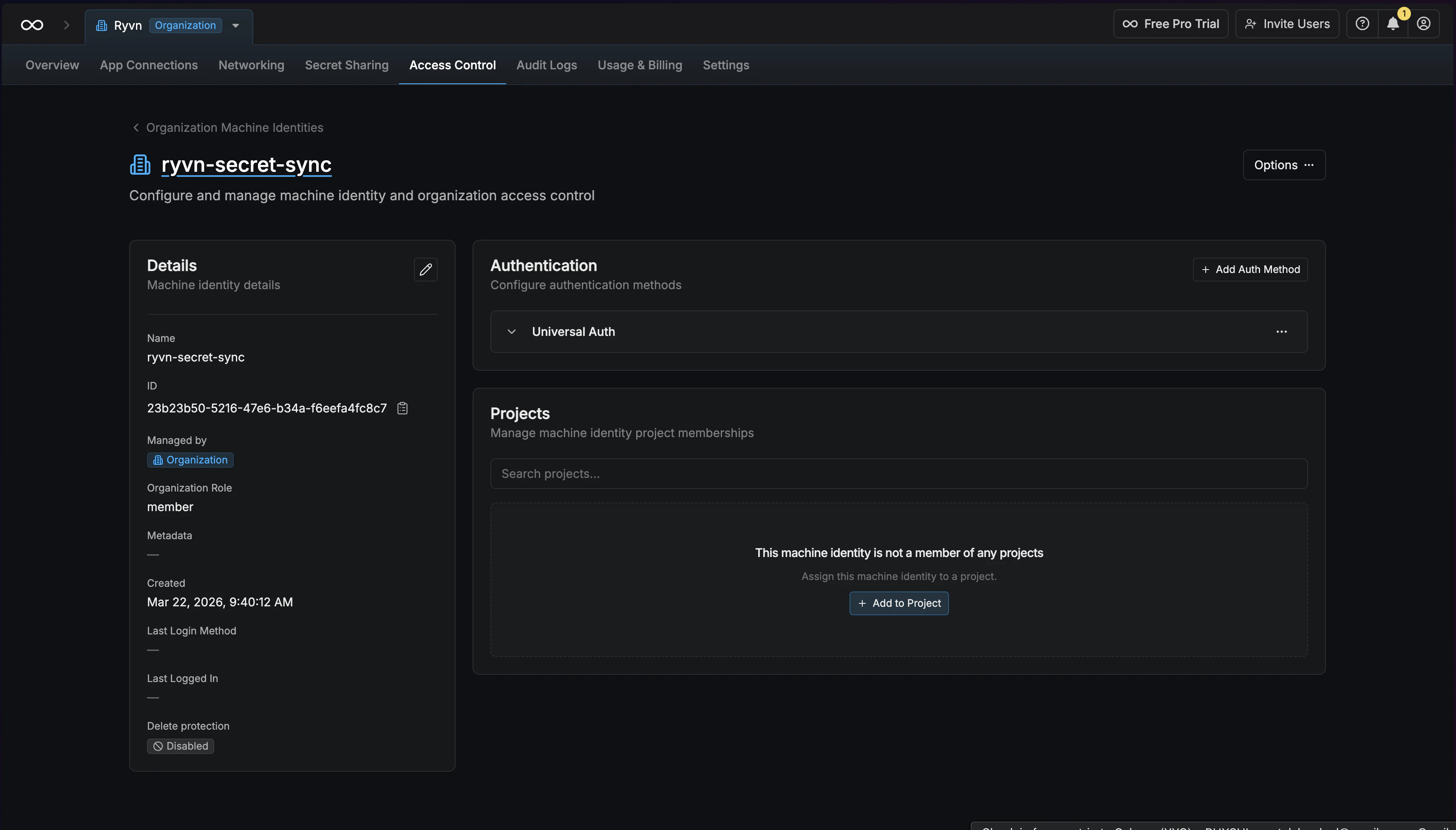
Add to project
Click Add to Project to grant the machine identity access to the Infisical project containing your secrets. Set the role to Developer or higher.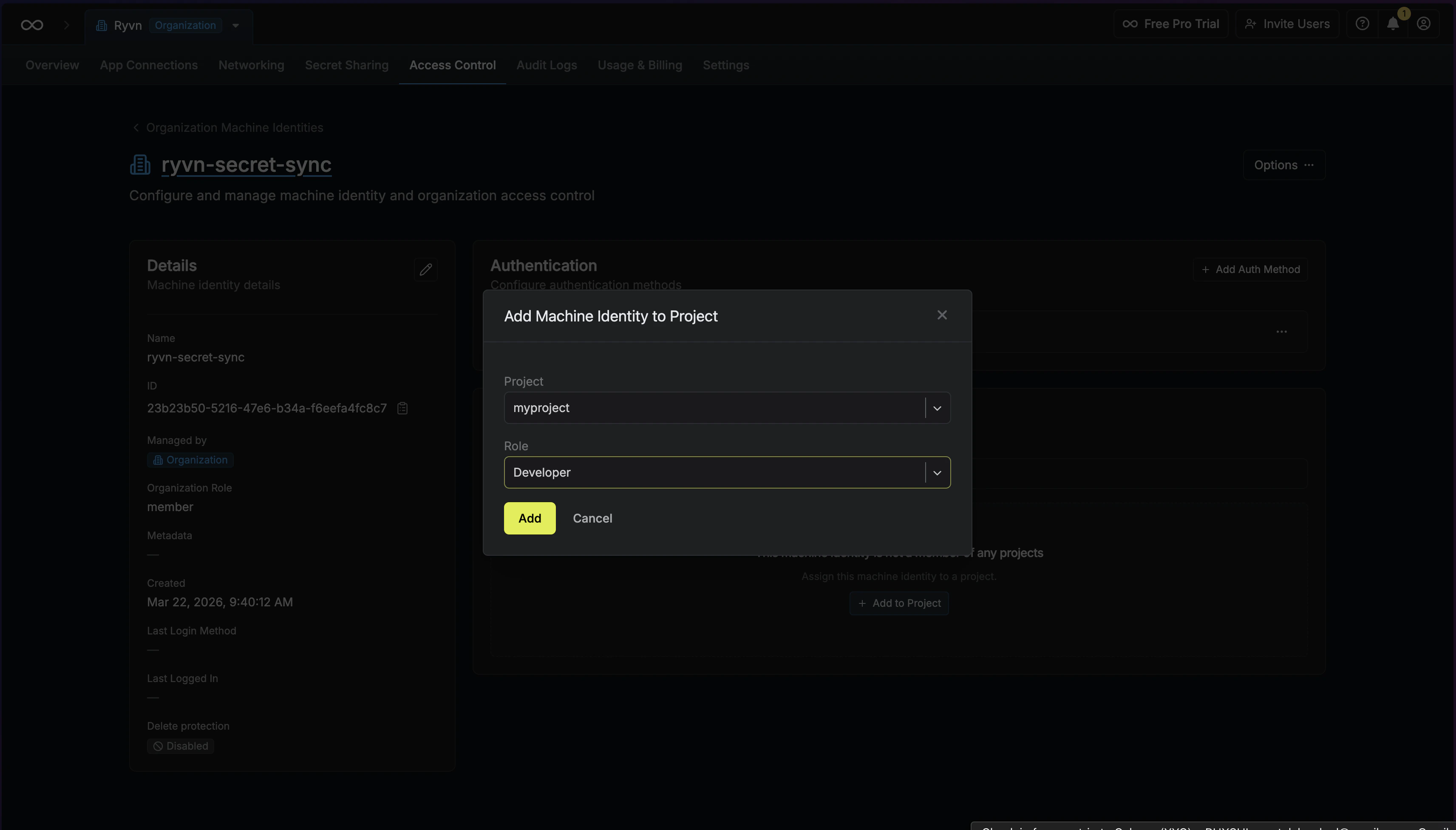
Create a client secret
Under Universal Auth, click Create Client Secret. Give it a description (e.g. 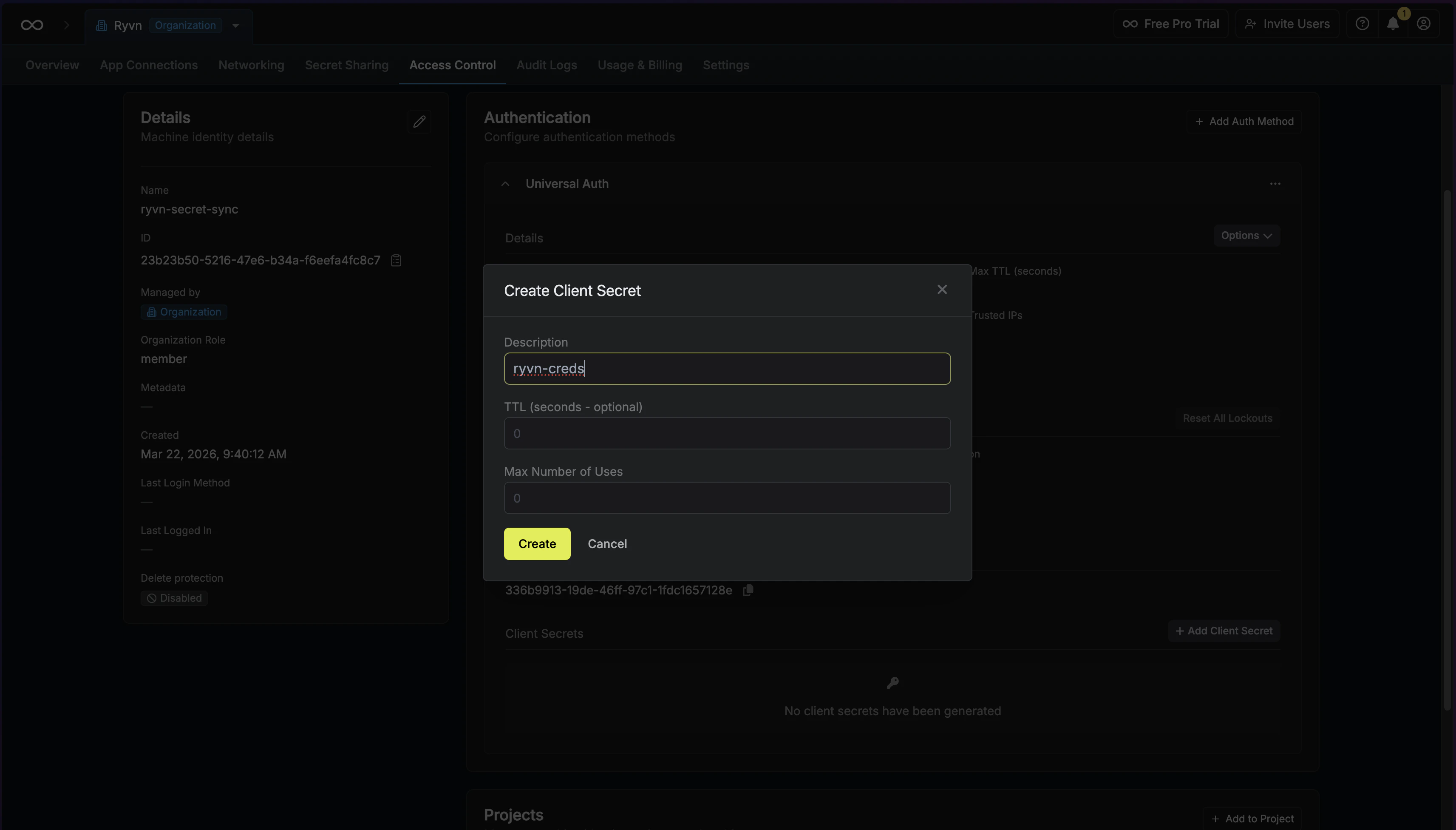
ryvn-creds). Copy the Client ID and Client Secret — you’ll need both.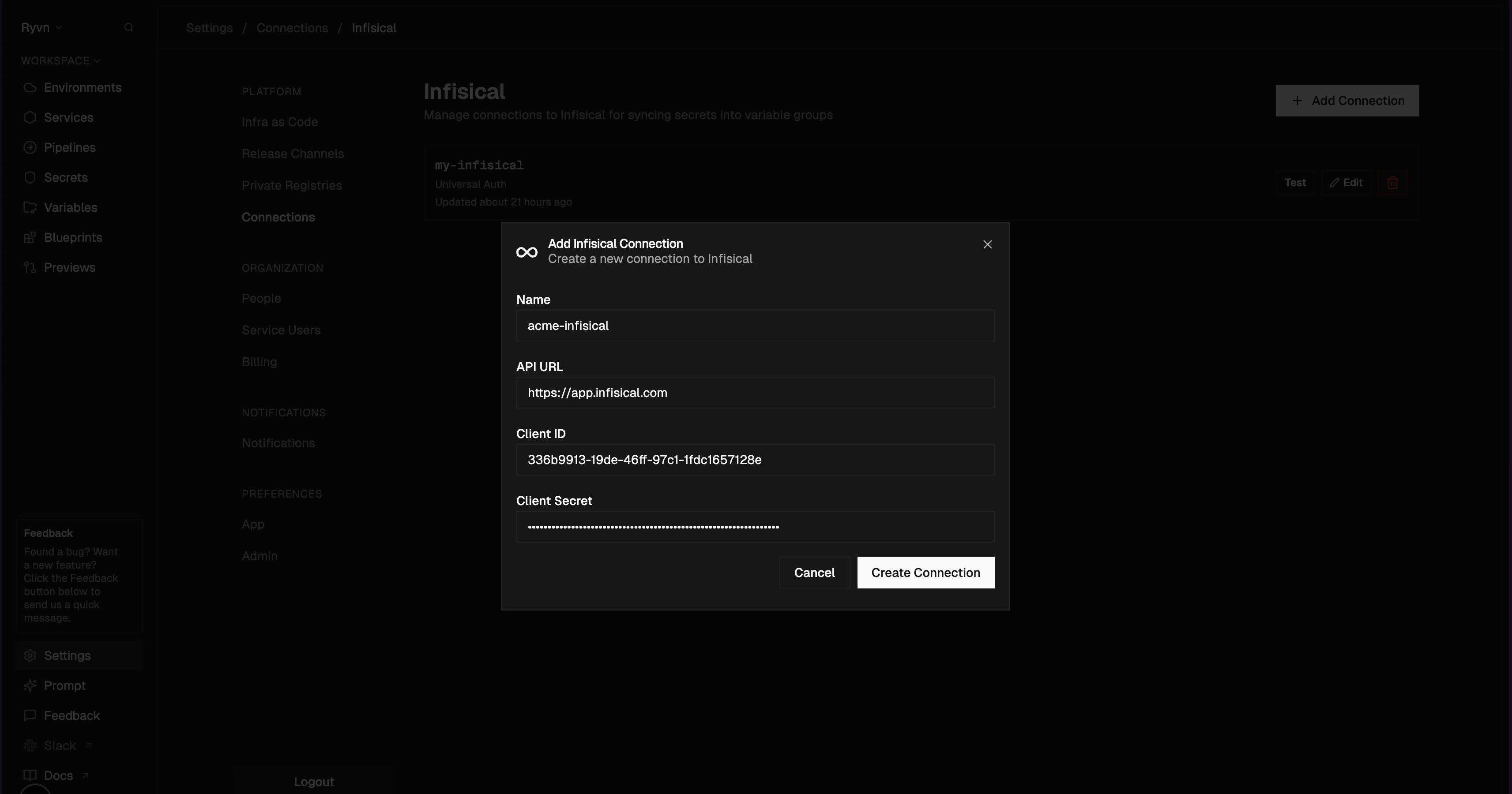
Using the connection
Once connected, you can link Infisical secrets to your variable groups. When creating or editing a variable group, select the Infisical connection and choose which project, environment, and secret path to sync from. Secrets are synced automatically on a regular interval. You can also test the connection from the Infisical settings page to verify it’s working.Managing connections
From Settings > Connections > Infisical, you can:- Test a connection to verify credentials are valid
- Edit a connection to update the API URL or rotate credentials
- Delete a connection (any linked variable groups will stop syncing)